
Desktop client
Your cloud, right
in your file manager.
The desktop client keeps one folder on your computer and your ownCloud.online permanently in sync. Save a file locally and seconds later it is in the cloud — and on every other device.
Version
6.0.3.18040
Operating systems
Windows, macOS, Linux
Download size
38–73 MB
Price
Free — included in your subscription
Install and connect
- Download the installer for your operating system and run it. The wizard guides you through the installation and starts the client when it is finished.
- Enter your full cloud address, for example
https://yourcompany.owncloud.online. - Sign in with your username and password. With two-factor authentication switched on, request an app password in the web interface first and use that instead.
- Choose whether to sync your entire cloud or selected folders, and pick the local folder on your computer. The cloud icon in your menu bar or system tray shows the status from then on.
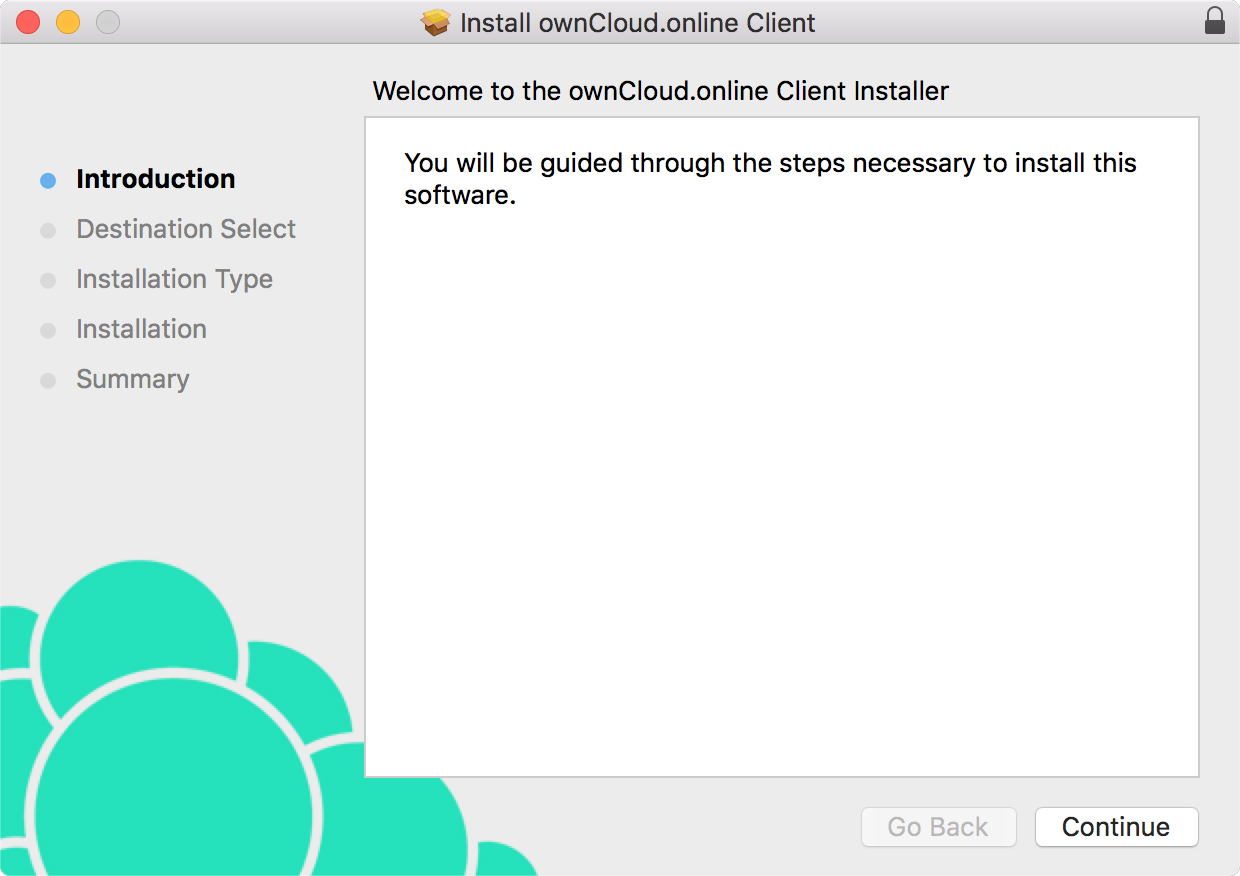
1
The installer walks you through the setup. On Windows you may be asked to confirm the installation.
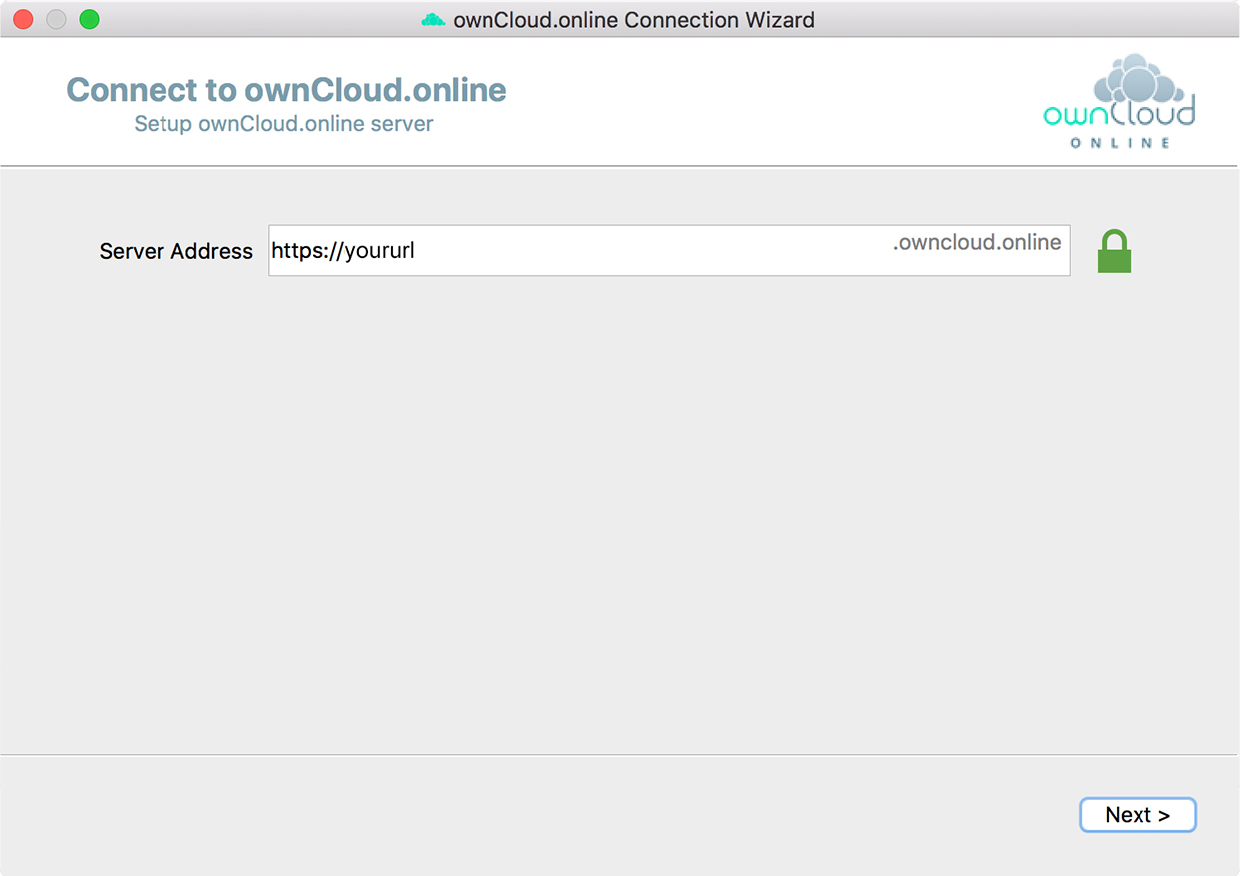
2
Enter the address of your cloud. The client checks the connection before it continues.
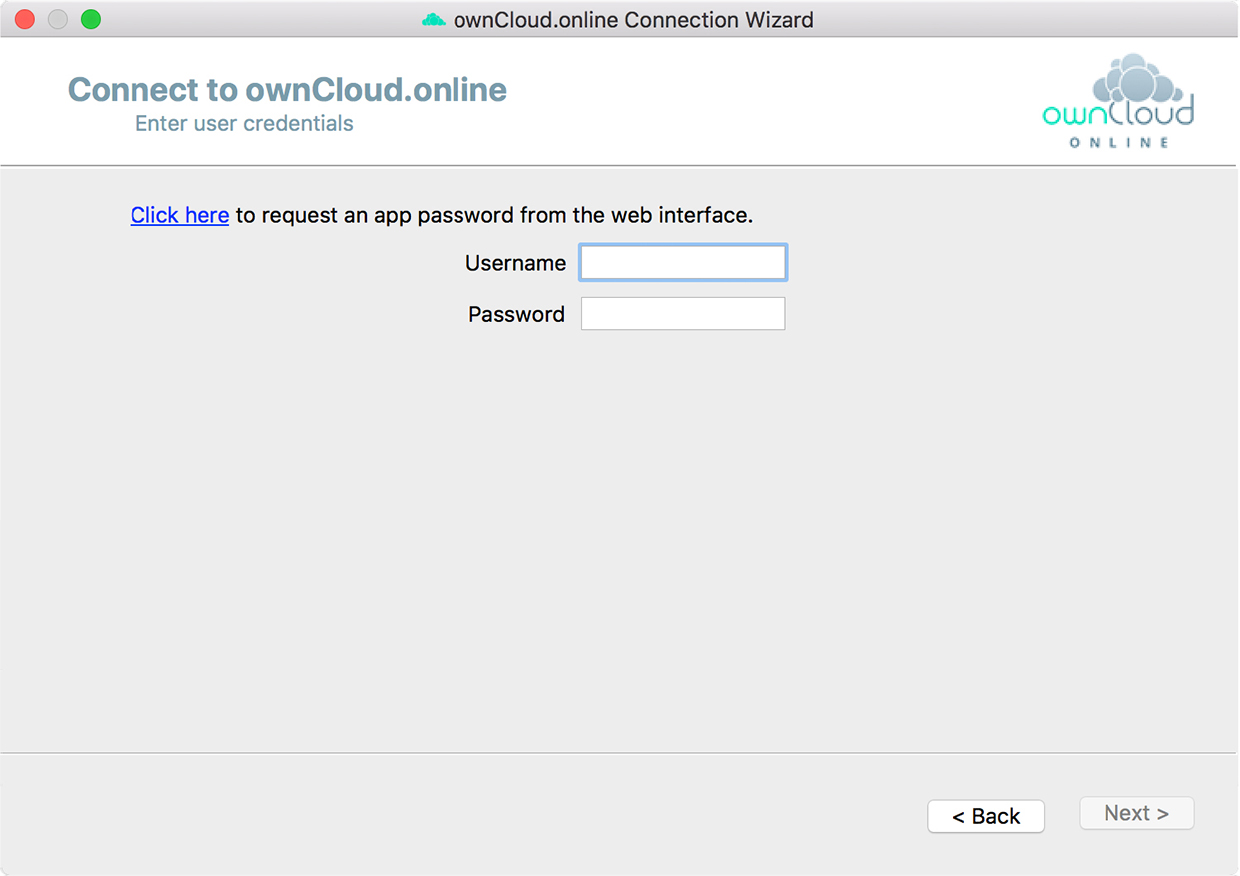
3
Sign in with your credentials — or with an app password if two-factor authentication is active.
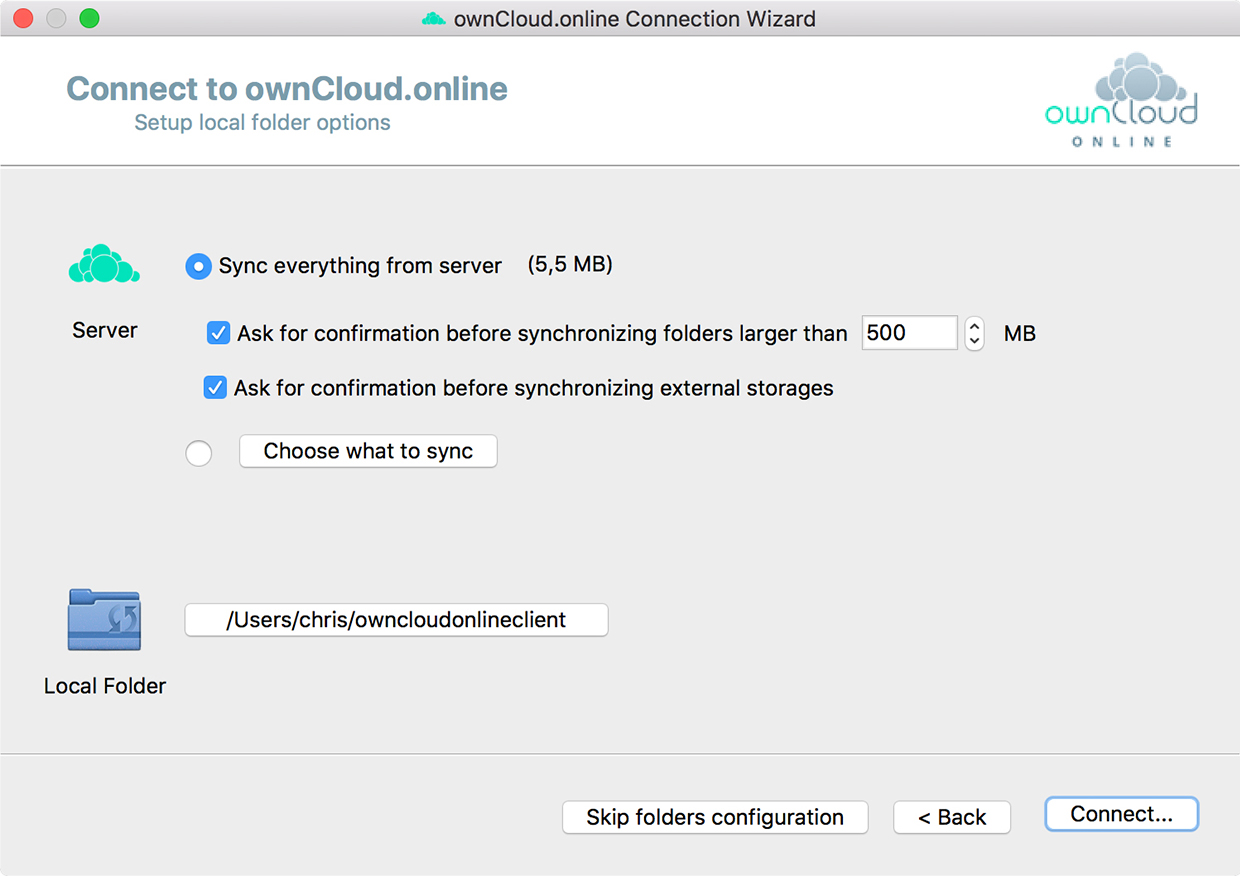
4
Decide what gets synced and where it lands on your computer.
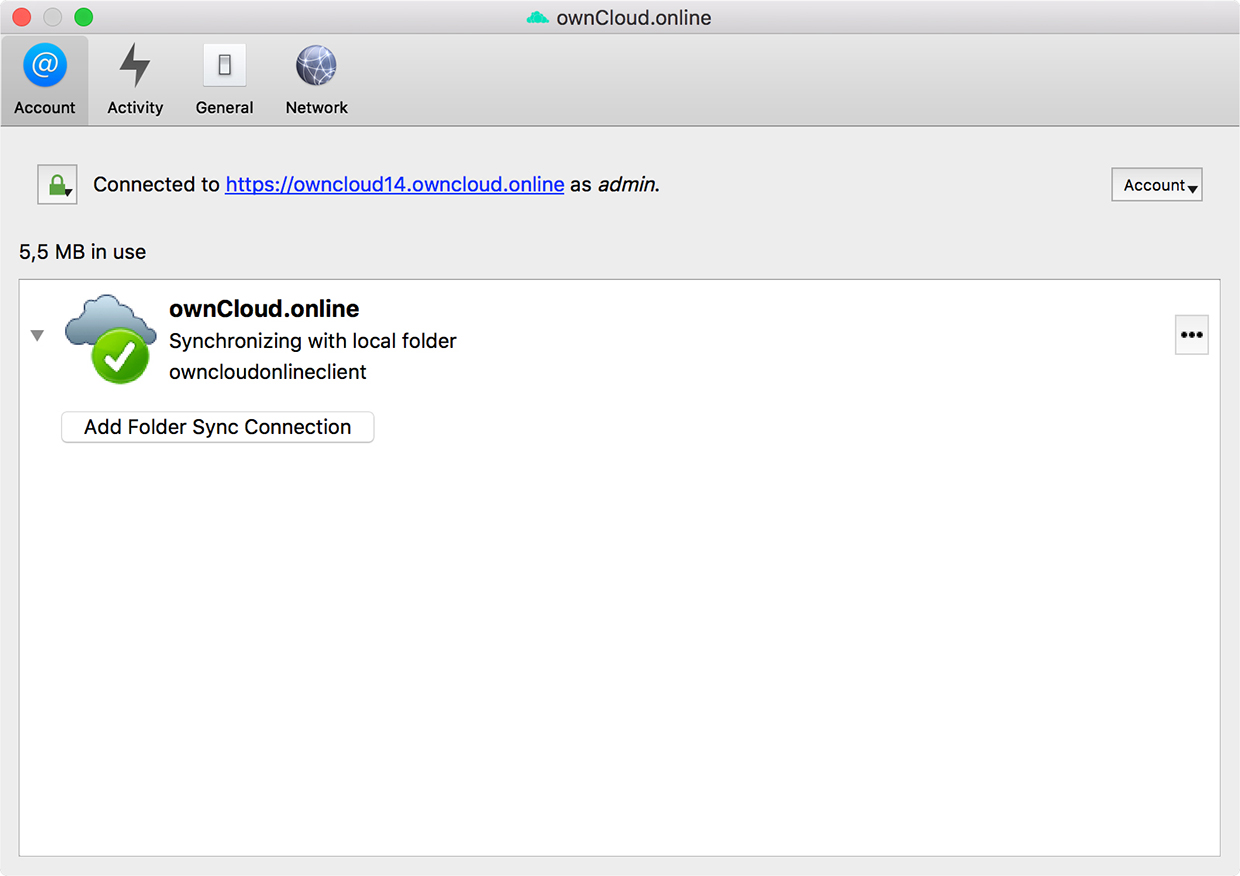
5
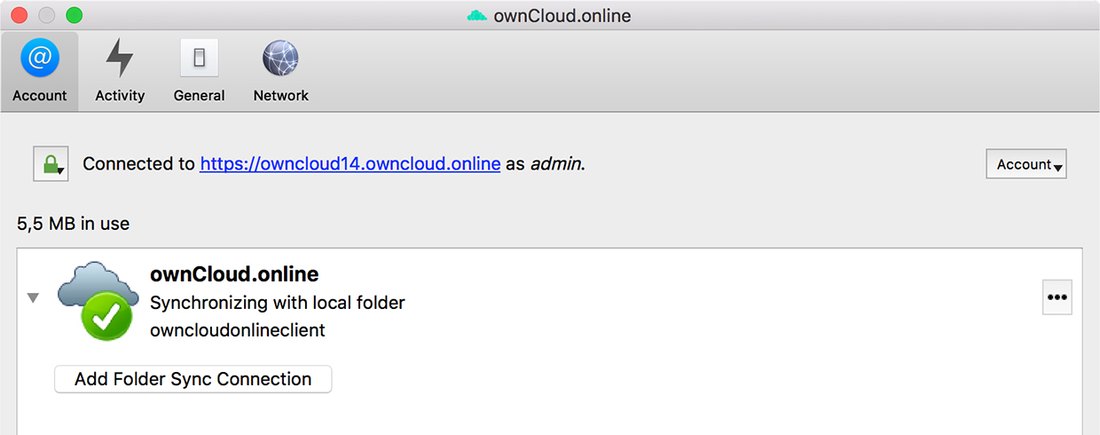
The client starts syncing. A green tick means everything is up to date.
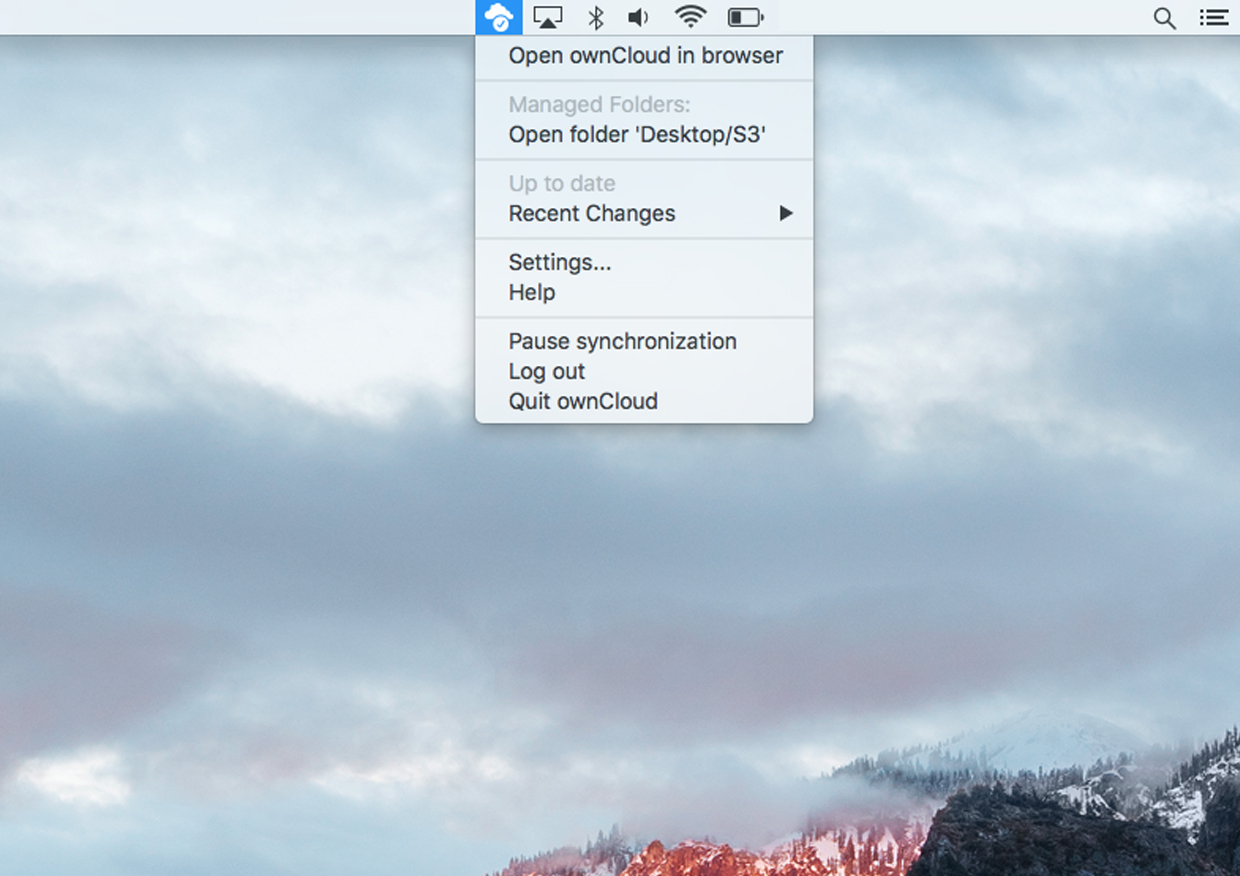
6
The cloud icon gives you the current status and quick access at any time.
What it does
Always in sync
Changes travel in both directions automatically. You work in your normal file manager, the client handles the rest.
Sync only what you need
Pick individual folders instead of your whole cloud — useful on devices with little disk space.
Virtual files
Files show up in your file manager without taking up disk space and are fetched only when you open them.
Open in Cloud Office
Open documents straight from your file manager in the browser-based Office — no local software needed.
Sensible conflict handling
If a file was changed in two places at once, the client keeps both versions instead of silently overwriting one.
Rollout for IT teams
A separate MSI package is available for deployment via group policy, so you do not have to visit every workstation.
All download options
| Platform | File | Size |
|---|---|---|
| Windows 10 / 11 (64 bit) | ownCloud-6.0.3.18040.x64.msi | 37.6 MB |
| Windows — deployment via GPO | ownCloud-6.0.3.18040.x64.GPO.msi | 37.2 MB |
| macOS — Apple Silicon (M1 and newer) | ownCloud-6.0.3.18040-arm64.pkg | 44.4 MB |
| macOS — Intel | ownCloud-6.0.3.18040-x86_64.pkg | 48.0 MB |
| Linux | ownCloud-6.0.3.18040-Linux | > 50 MB |
Good to know
Which address do I enter as the server?
The complete address of your cloud, including https:// — for example https://yourcompany.owncloud.online. You will find it in the welcome email we sent you right after signup.
I use two-factor authentication. How do I sign in?
Your normal password will not work in the desktop client. Create an app password in the web interface under Settings → Security and enter that in the client instead.
Does the client update itself?
Yes. The client checks for new versions on its own and installs them. You can also download the current version here at any time.
Can I connect more than one account?
Yes. You can add several accounts in the client and sync each one into its own local folder.
Also available for
Stuck somewhere?
Our support team is based in Germany and answers in German and English — usually within a few hours.

Your personal contact
Stefan Noack