
Getting started
Your cloud is ready.
Let’s get you working.
Five steps and your whole team is up and running securely — usually in less than 15 minutes.
What you need: the welcome email we sent you right after signup.
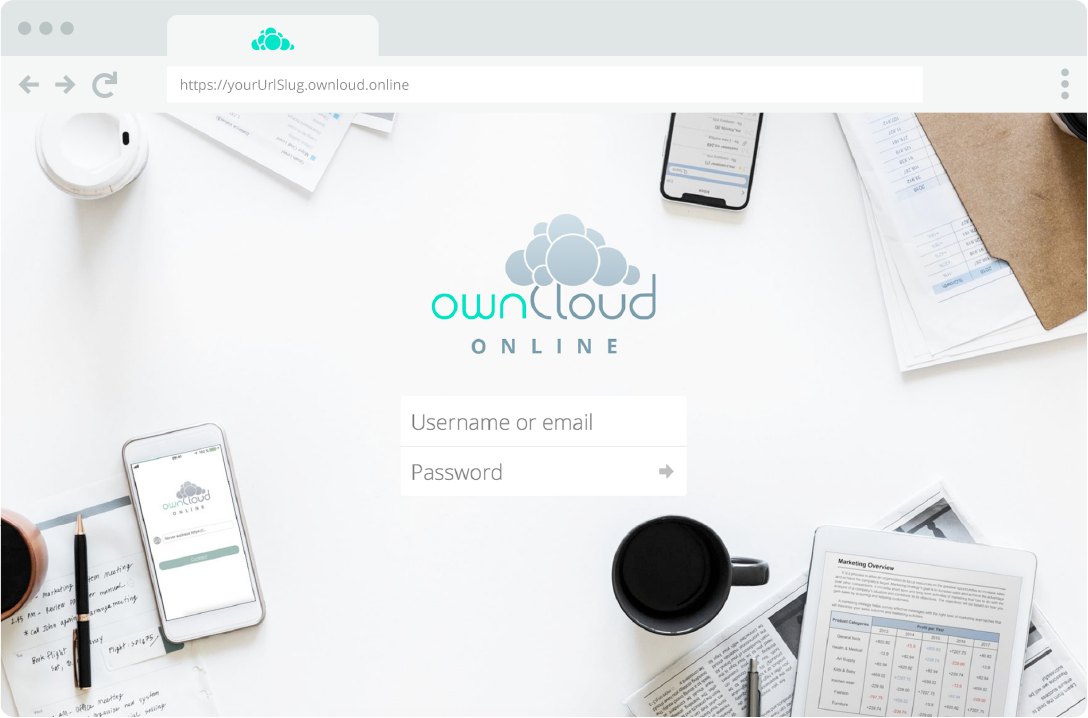
1 Welcome email
Everything arrives by email
About ten minutes after signup we send you everything you need:
- Your personal cloud address, for example
https://yourcompany.owncloud.online - The username and password for your admin account
Keep this email — you will need the address again for the desktop and mobile apps.
The email hasn’t arrived — what now?
Please check your spam and junk folders first. If nothing has arrived 30 minutes after signup, write to support@owncloudonline.com and we will get you started right away.

2 Log in
Log in to your cloud
- Open your cloud address in any browser.
- Enter the admin username and password from the welcome email.
- Bookmark the page — this is where your team works from now on.
Tip: change the admin password right after your first login, under Settings → Security.
3 Invite your team
Invite your team
Your cloud starts with a single admin account. Create a user for every colleague so everyone gets their own login, their own files and their own sharing permissions.
- In the web interface open the user menu at the top right and choose Users.
- Click New user and enter a name and email address.
- Optionally assign a group and a storage quota.
New users receive their credentials by email and can sign in immediately.

4 Sync your computer
Sync your computer
The desktop client keeps a folder on your computer and your cloud permanently in sync. Save a file locally and it is in the cloud seconds later — and on every other device.
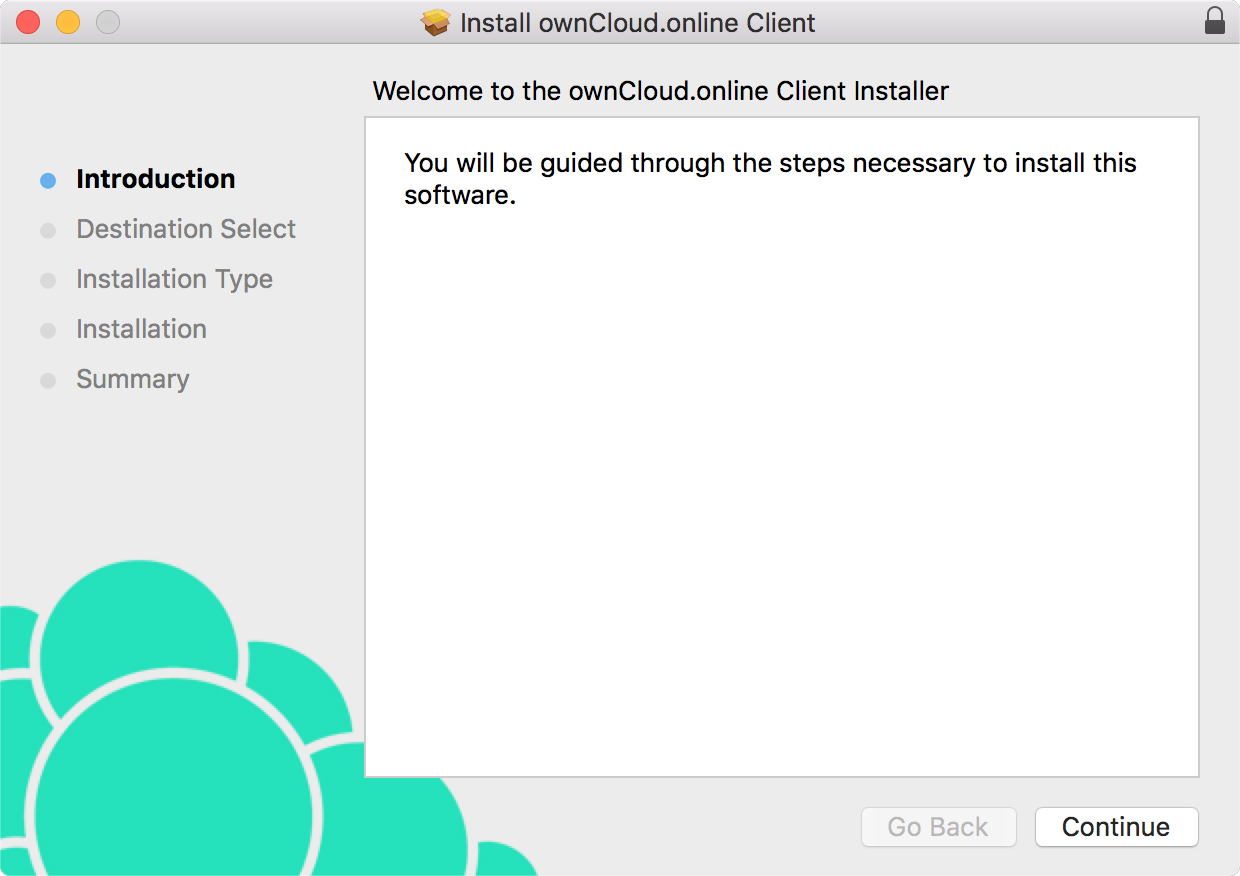
1
Open the downloaded installer. The wizard guides you through the installation — the client opens automatically when it’s finished.
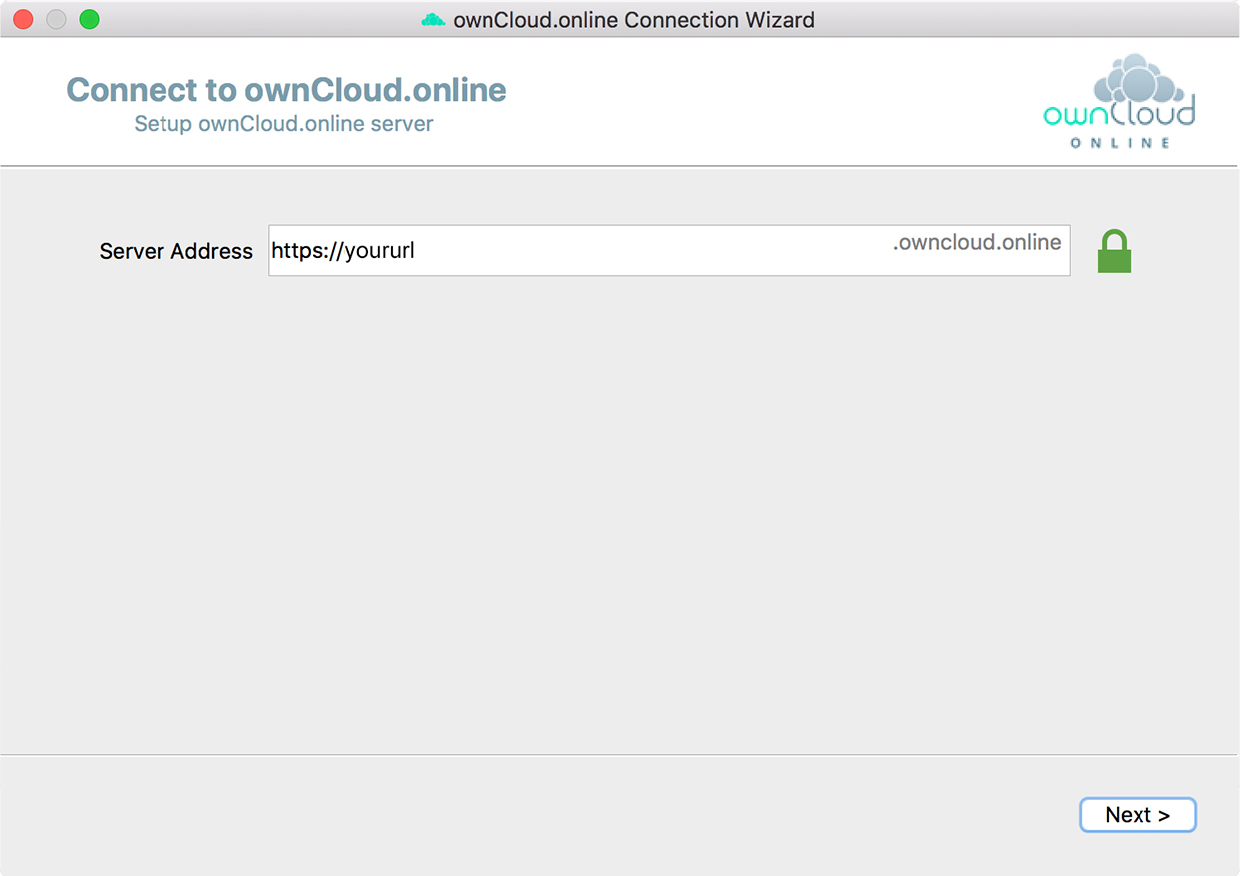
2
Enter the address of your cloud. The client checks the connection before it continues.
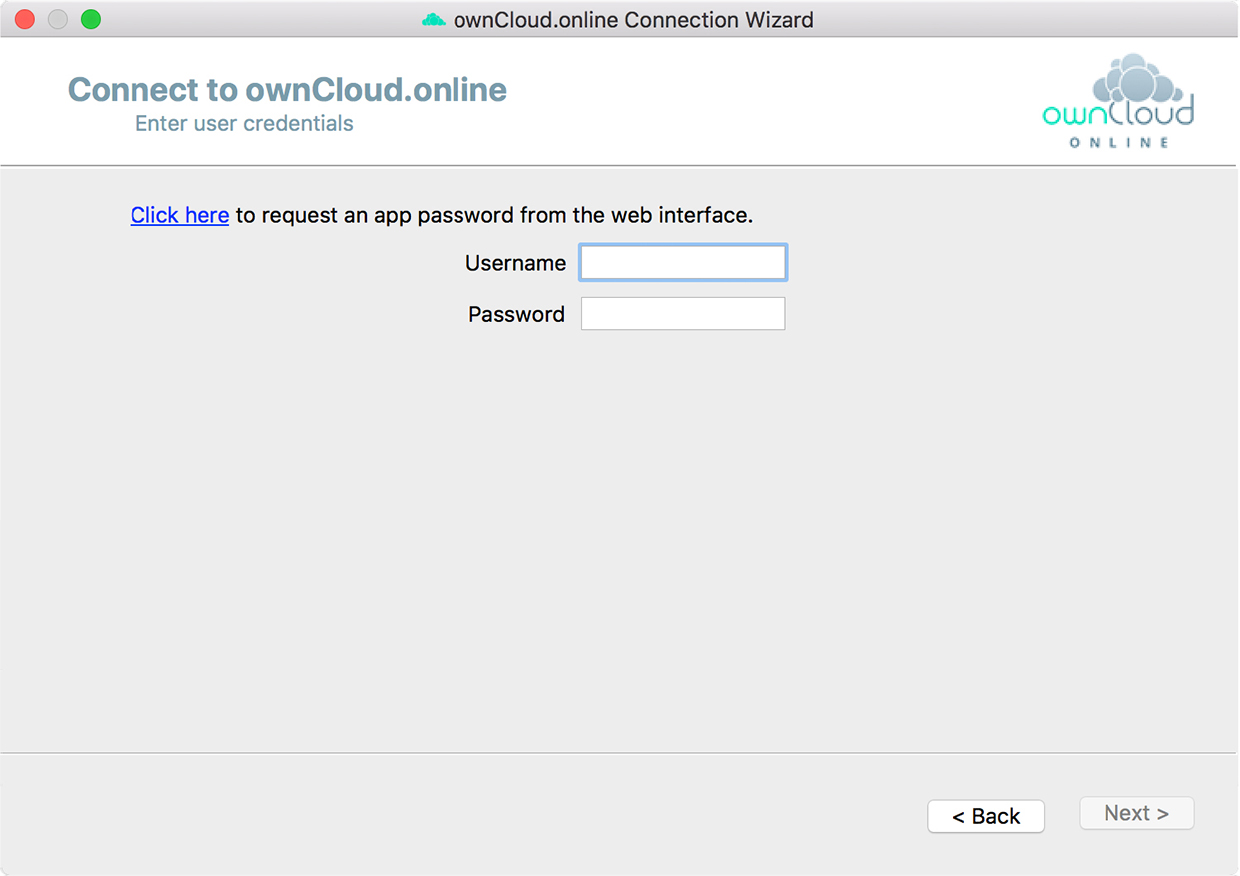
3
Sign in with your username and password. With two-factor authentication switched on, use Click here to request an app password and enter that instead.
4
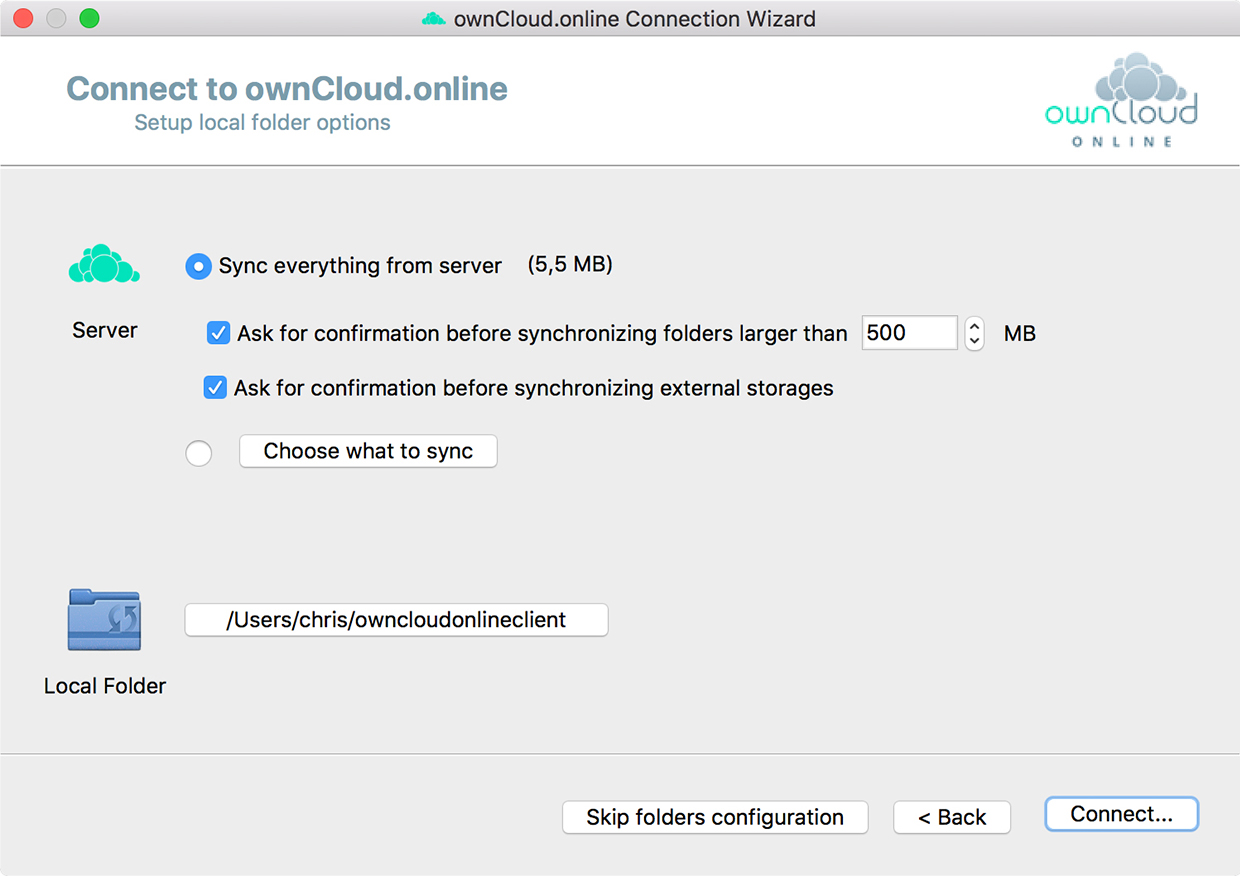
Choose whether to sync your entire cloud or selected folders, and pick the local folder on your computer.
5
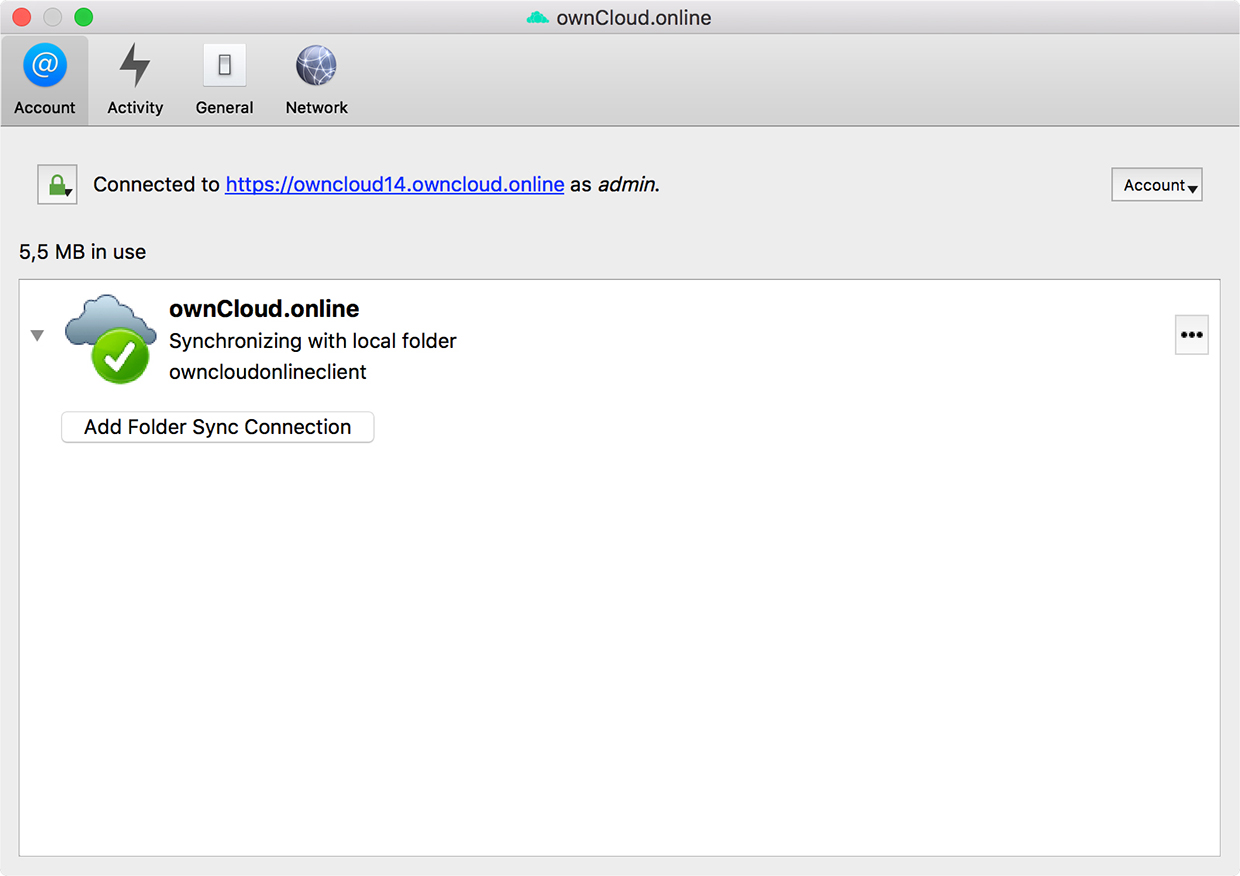
The client starts syncing. A green tick means your files are up to date.
6
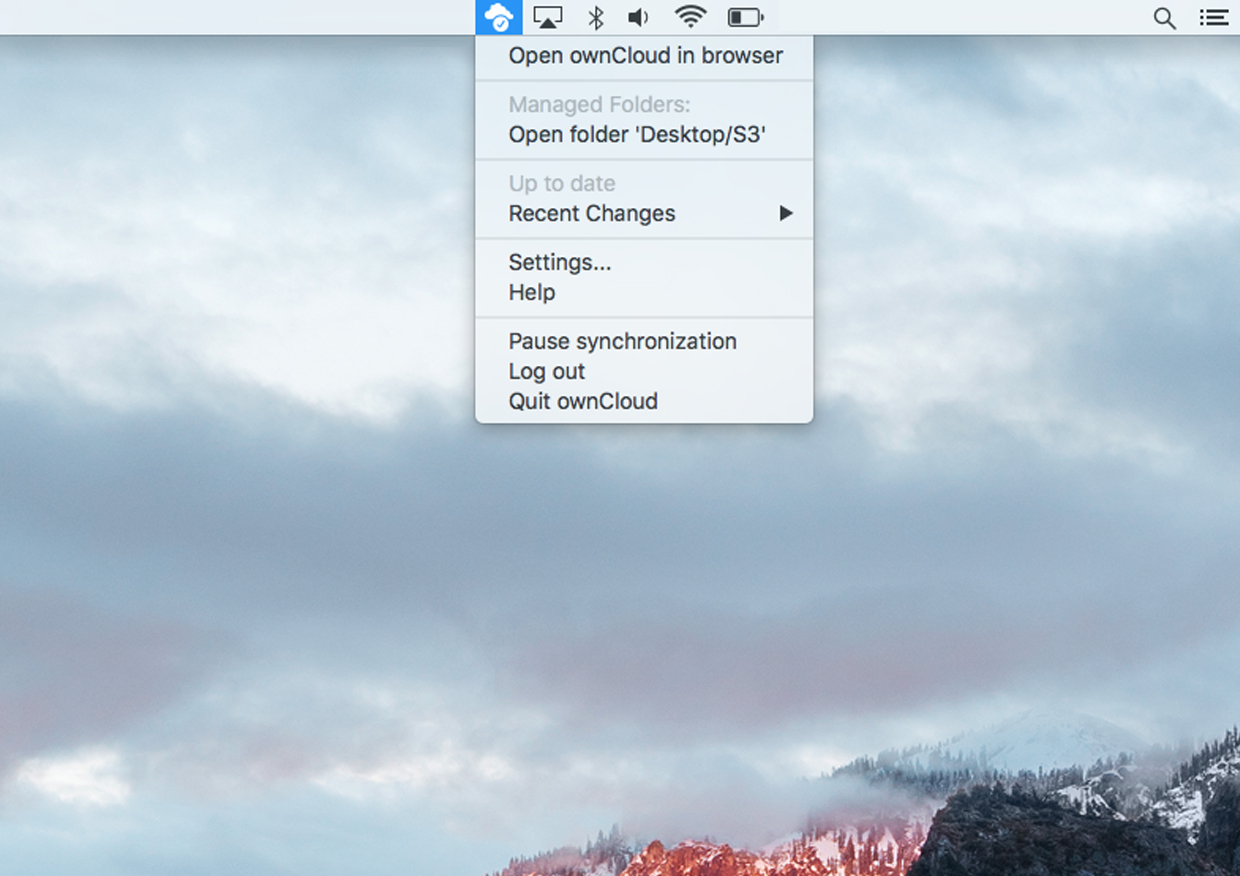
The cloud icon in your menu bar gives you the current status and quick access at any time.
System requirements, virtual files, conflict handling and rollout via group policy: everything about the desktop client
5 Mobile app
Take your files with you
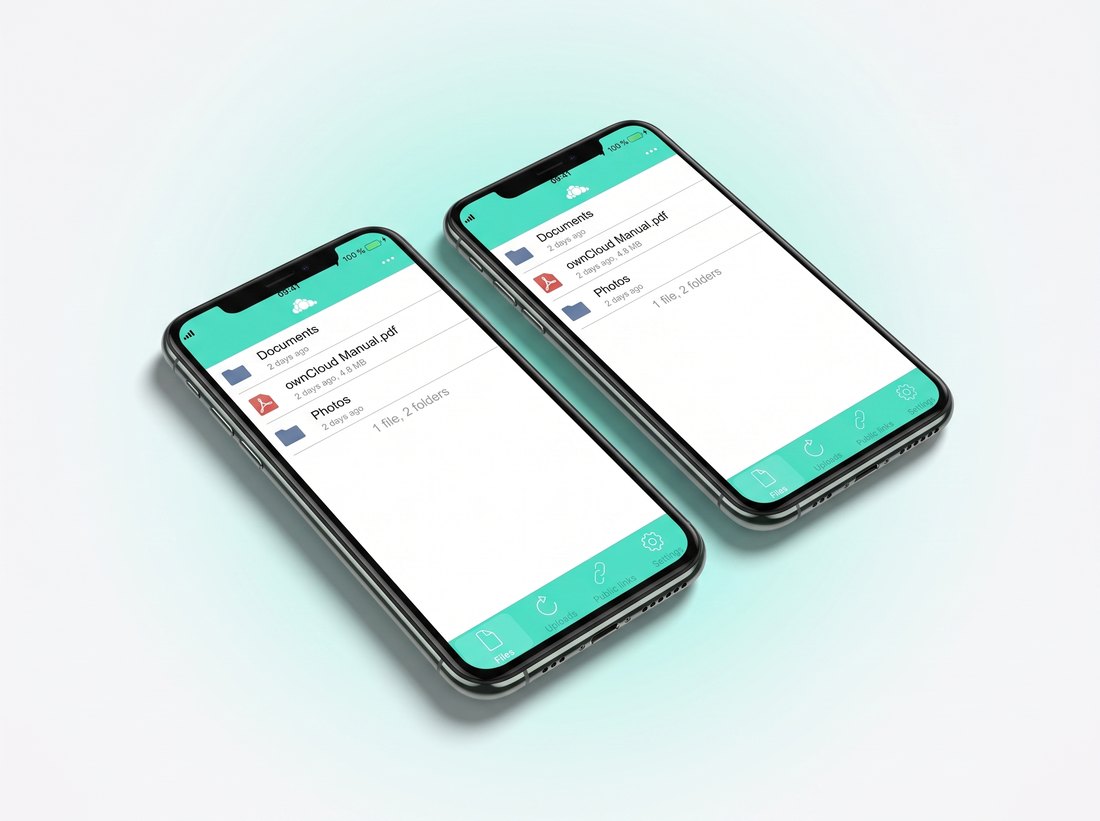
With the free app your files travel with you. Open documents on the move and share them in a few taps — with the same protection as on your desktop.
On iPhone and iPad
- Install ownCloud Online from the App Store — that is the app for hosted clouds like yours.
- Enter your cloud address and sign in with your username and password.
- The files view opens — you are connected.
Everything about the iOS app — features, requirements and the app password for two-factor authentication
On Android
- Install ownCloud.online from Google Play.
- Enter your cloud address and sign in with your username and password.
- Allow access to your files so documents can be stored on your device.
- The files view opens — you are connected.
Everything about the Android app — automatic photo upload, sharing and requirements
Add Cloud Office
Write documents, build spreadsheets and prepare presentations directly in your browser — no local software, and nothing ever leaves your cloud. 4 € per user per month, switchable on for any account.
Get the apps
Stuck somewhere?
Our support team is based in Germany and answers in German and English — usually within a few hours.

Your personal contact
Stefan Noack
That’s it — happy clouding!
Your cloud is set up, your team is on board and your files sync themselves. Everything else you can explore at your own pace.