Two-Factor Authentication

Two-Factor Authentication (2FA) adds an extra layer of security to your ownCloud.online account. The first layer is the combination of your username/email address and password. The second layer is a one-time time-based number which is generated by a third party app. Adding one more step of authenticating your identity makes it harder for an attacker to access your data.

This drastically reduces the chances of fraud, data loss, or identity theft.

for an attacker to access your data.

This drastically reduces the chances of fraud, data loss, or identity theft.

Schritt 1

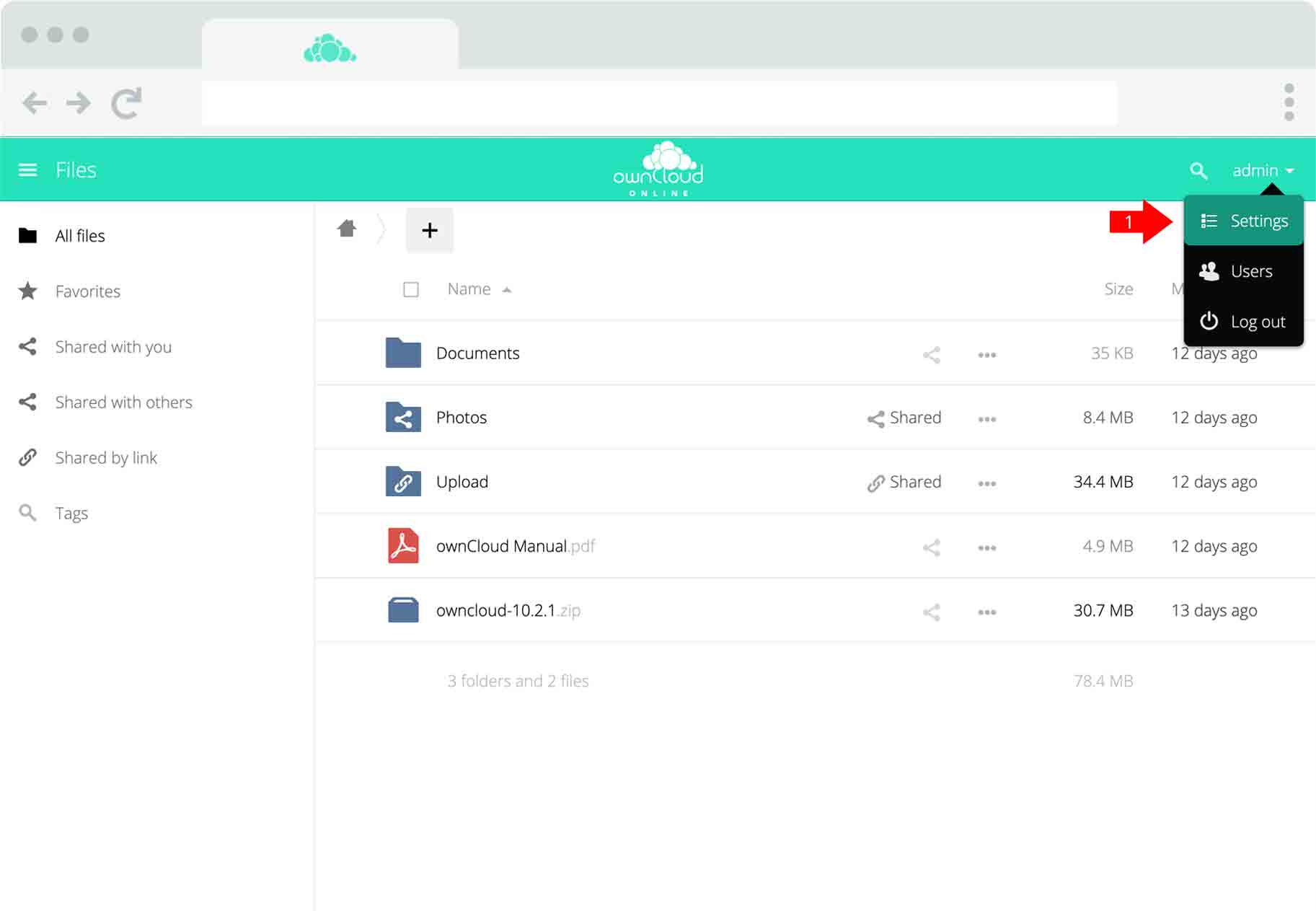
To enable Two-Factor-Authentication click on your username in the top right corner and select “Settings” (1).
Schritt 2

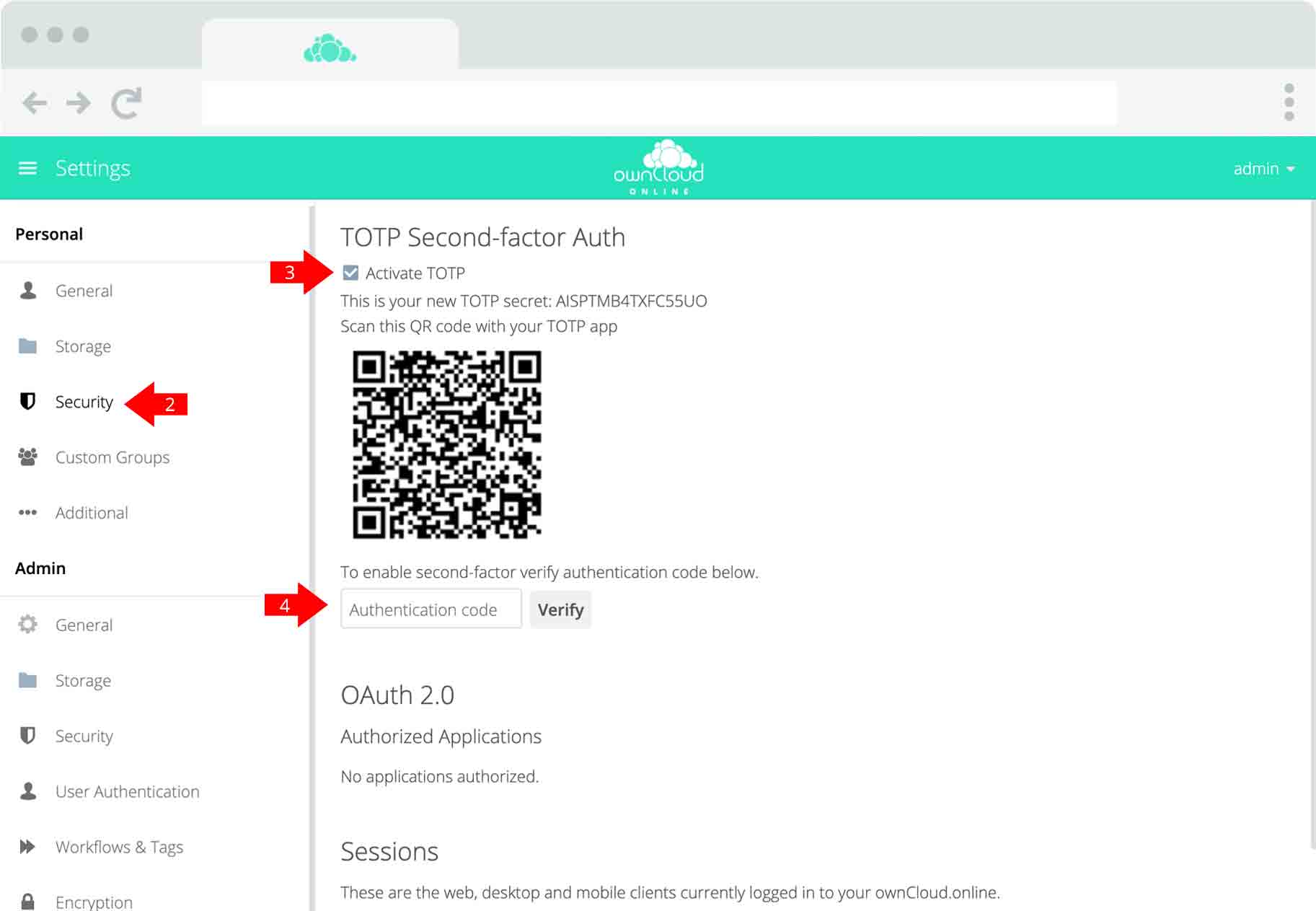
Click on “Security” (2) and enable the “Activate TOTP” checkbox (3). With your authenticator app (for example Google Authenticator or alternatives) scan the barcode to add ownCloud.online to your one-time passwords list. Enter a generated one-time password in the text box below (4) and click on “Verify” to complete the setup.
Schritt 3

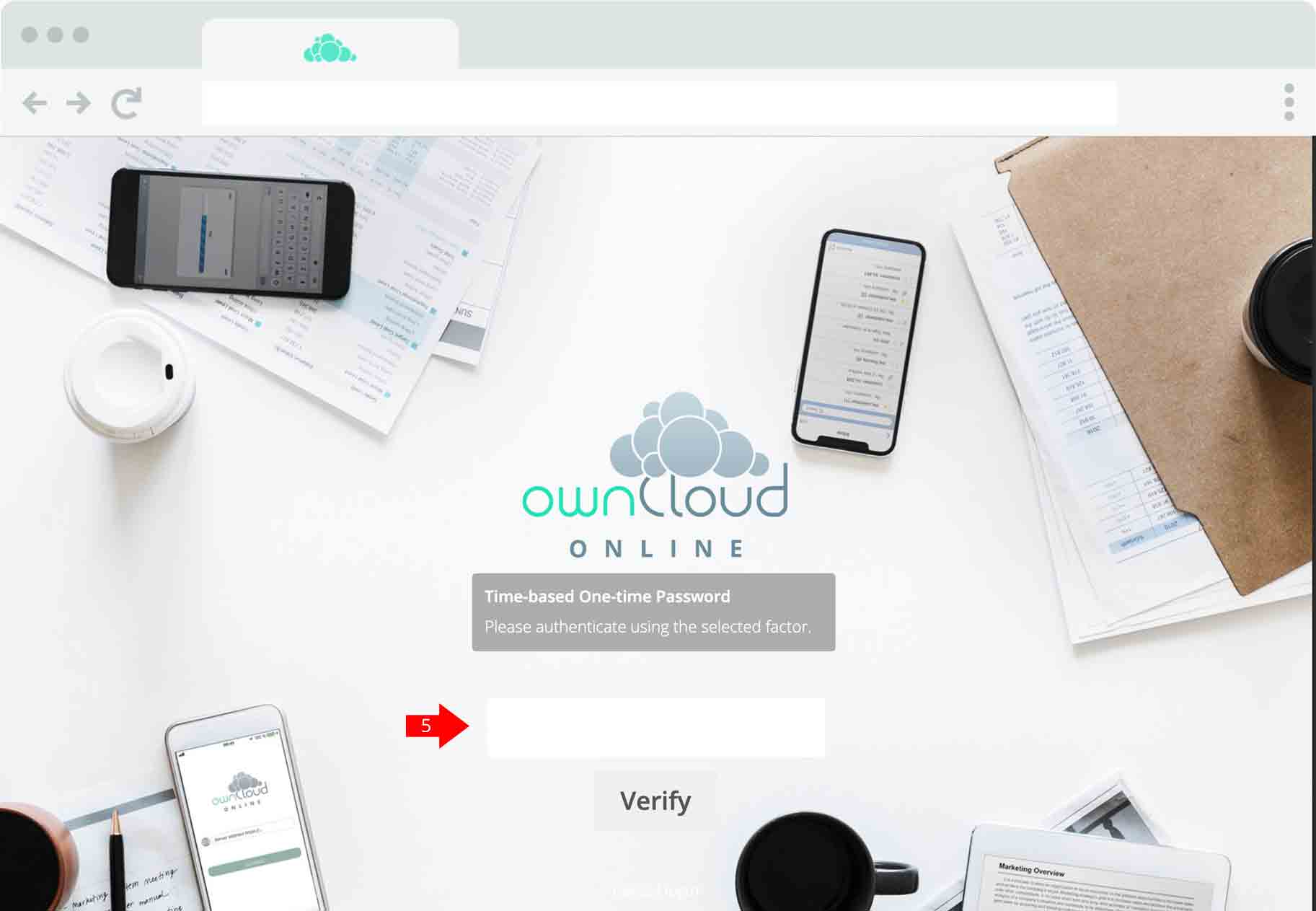
The next time you log in via the webinterface you get prompted to enter a one-time-password. Check your authenticator app, enter the password (5) and click “Verify”. You are now logged in.

Increase your security and block out hackers

Two-factor authentication can play an important role in securing account by blocking a number of application-based attacks.

These include brute force and dictionary attacks, in which perpetrators use automated software to generate massive amounts of username/password combinations in an attempt to guess a user’s credentials.

With 2FA enabled, these attacks are fruitless—even if perpetrators are able to discover or to phish a user’s password, they still lack the second form of identification needed to login to the application. Your cloud is secure.

This site is registered on wpml.org as a development site. Switch to a production site key to remove this banner.